Posts

Showing posts with the label D365 js

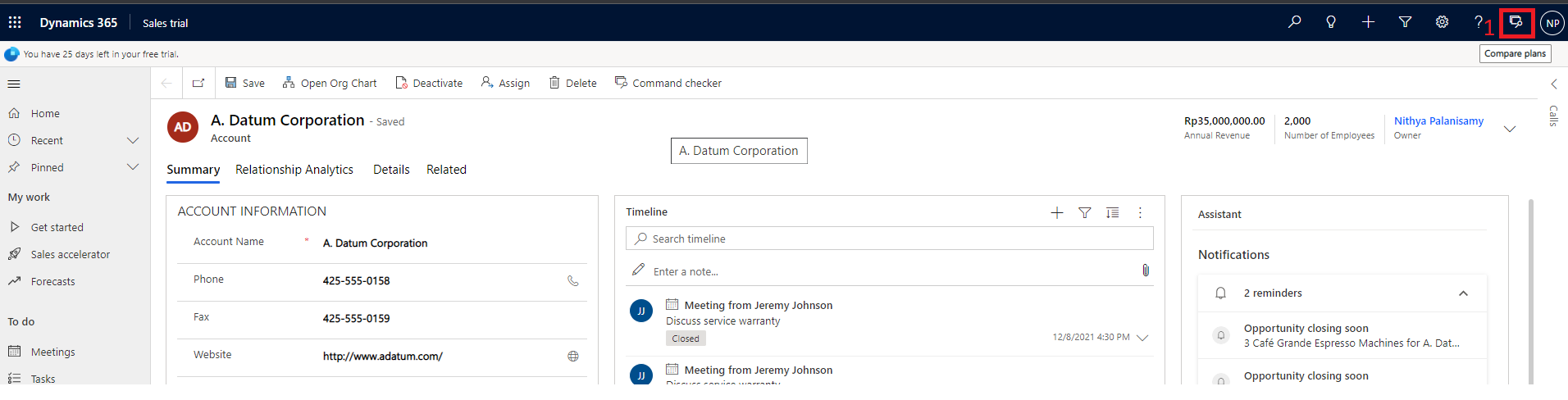
Hide Headers, Commandbar, Tabs in D365 Forms

Image
There are options available to hide Command Bar, Header part and Tabs.  Below is the screenshot which highlights these areas for your understandings. let formContext = Xrm.Page ; or let formContext = executionContext.getFormContext(); // Hide Header part formContext.ui.headerSection.setBodyVisible(false);   //Hide Command bar formContext.ui.headerSection.setCommandBarVisible(false);   // Hide Tabs formContext.ui.headerSection.setTabNavigatorVisible(false); After all are hidden,

D365 JS Best Practices

Based on the experiences in various CRM projects, I would like to share some of the best practices which will be helpful to make JS files easy to maintain, reusable, reliable and with industry code standards. 1. Create JS files with namespace and add all functions, objects and properties to the namespace. Example:   // Namespace in project level var SCH = SCH || {}; // Namespace in js file level SCH.RescheduleOrder = SCH.RescheduleOrder || {}; // Object declaration SCH.RescheduleOrder.StateCodeValues = { Active: 0, Inactive: 1 }; // Function declaration SCH.RescheduleOrder.onLoad = function (executionContext) { "use strict"; var formContext = executionContext.getFormContext(); //Usage of object inside the function if (formContext.getAttribute("statecode").getValue() === SCH.RescheduleOrder.StateCodeValues.Active) { // To do; } }; 2. "use strict" directive inside every functio...

Run async calls sequentially in D365 JS

With the introduction of "Xrm.WebApi.online", calls to CRM api becomes asynchronous always. Due to this, most of the times, we need to use ".then()" function and write the logic which needs to be executed next, or we are going with "XMLHttpRequest" for making synchronous calls.  Now, using  'async and await' keywords, we can make the code to run in a synchronous way with  "Xrm.WebApi.online" as well. Example: Consider the following requirement. In Contact home page, show or hide the 'Summary' ribbon button based on the view selected. the view name is stored in the custom entity 'Configuration Settings' which has two fields: Name and Value. There is already a method implemented to retrieve the  Configuration Settings Value based on the Name passed using  Xrm.WebApi.online. retrieveMultipleRecords . function GetConfigSettings(viewName) { try { var result = Xrm.WebApi.online.retrieveMultipleRecords("new_conf...

Using Resx file in D365 JS

Image
Most of the times, we have validation or error messages to be shown to user during client side validations in D365. We directly hardcode these message in the JS functions. Instead we can use Resources file(.resx) to store all the messages in common file and use it wherever it is required.  This helps in maintaining the code and also promotes reusability.  This file format is also supported in web resources. Creation of Resource file: In visual studio, resource file can be directly created as shown below. Add the validations message as shown below and save the file(eg:UserValidationMessages) . You can add as many messages you want. Open D365 web resource and upload this file by selecting Type as 'String(RESX)' as shown below. Below is the sample code to retrieve the messages from resource file. var emailValidationMessage = Xrm.Utility.getResourceString("new_UserValidationMessages.resx", "AccountEmailAddressValidationMessage"); The resource file can be upd...

Popular posts from this blog

Ribbon debug/Command checker tool

Show/Hide ribbon button based on the selected view in the D365 subgrid

Using Resx file in D365 Plugins/Workflows